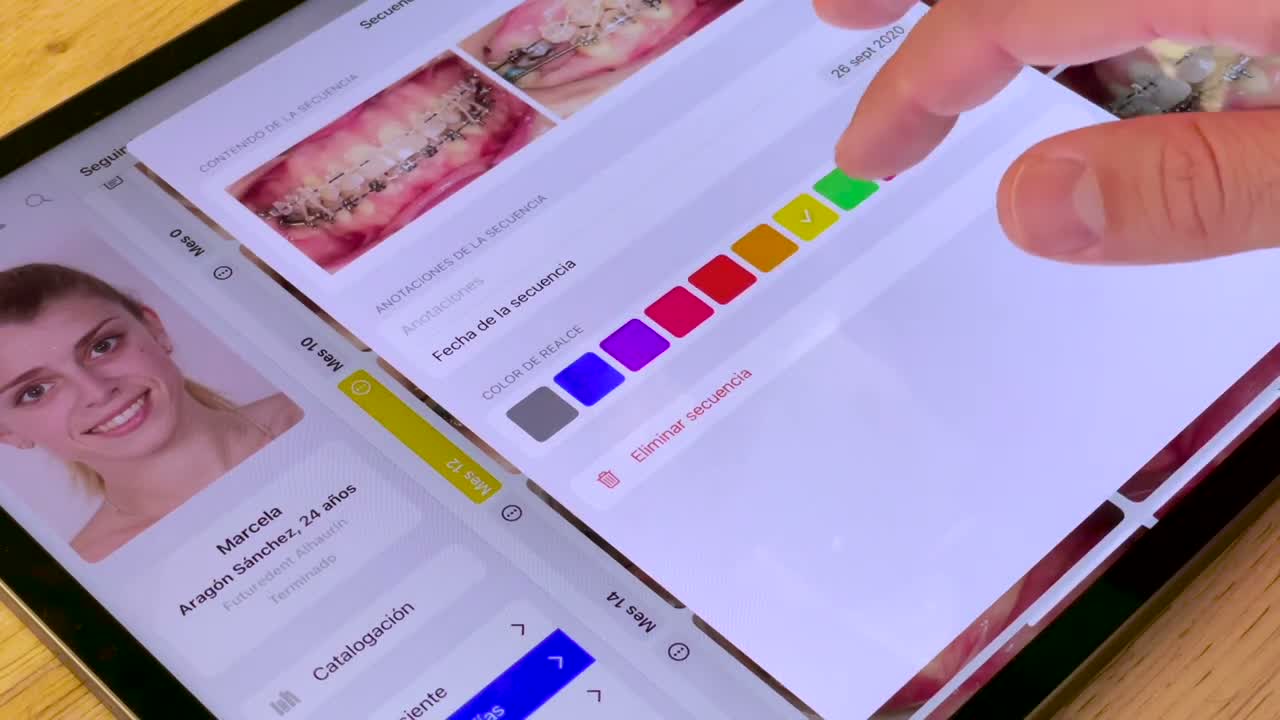
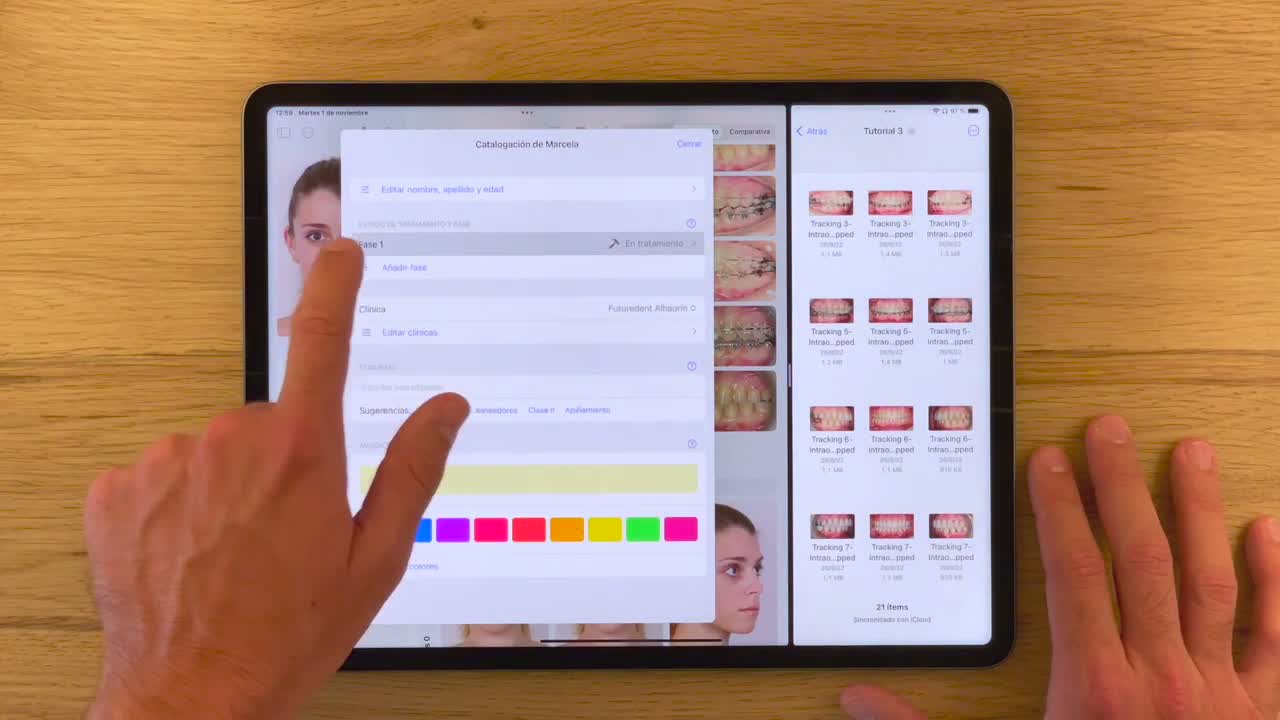
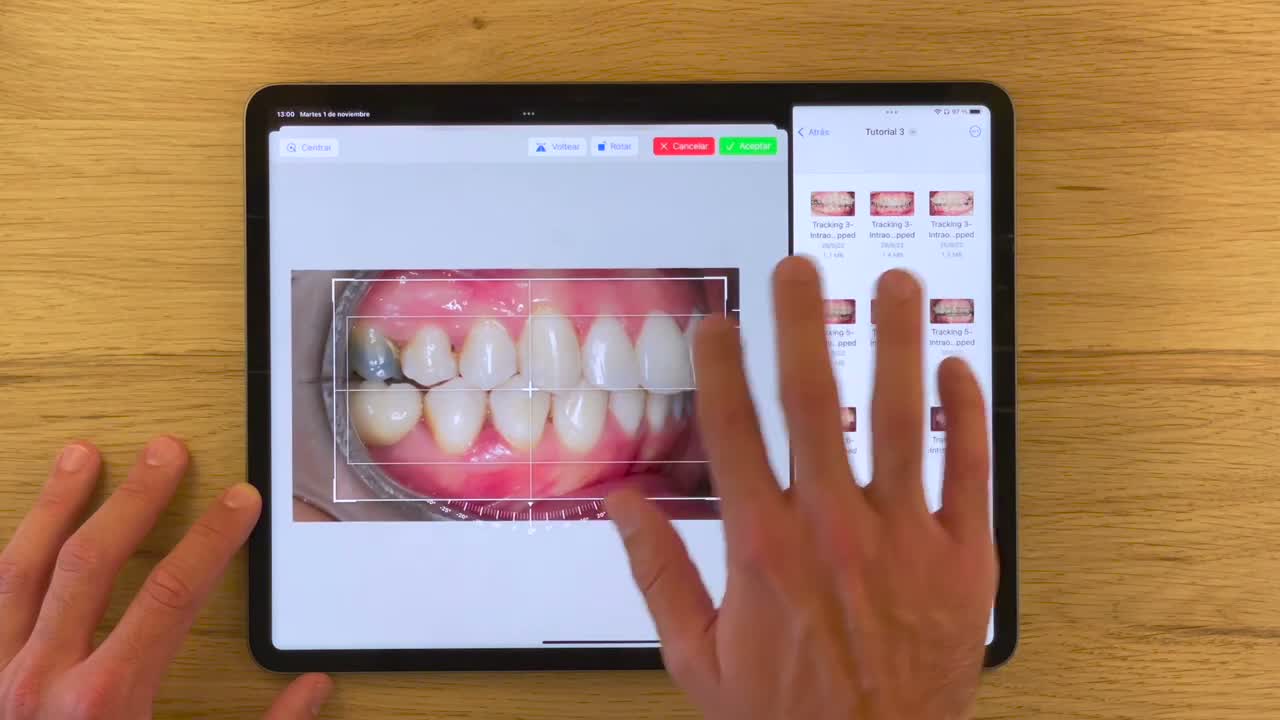
Photo follow-up lets you document each visit and compare the patient’s progress from the iPad. The key is to first change the treatment status, add one sequence per visit and keep dates and annotations well organized.
Before You Start
- Have the initial photos imported.
- Use equivalent views at each visit so the comparison is useful.
- Change the patient’s status before starting follow-up.
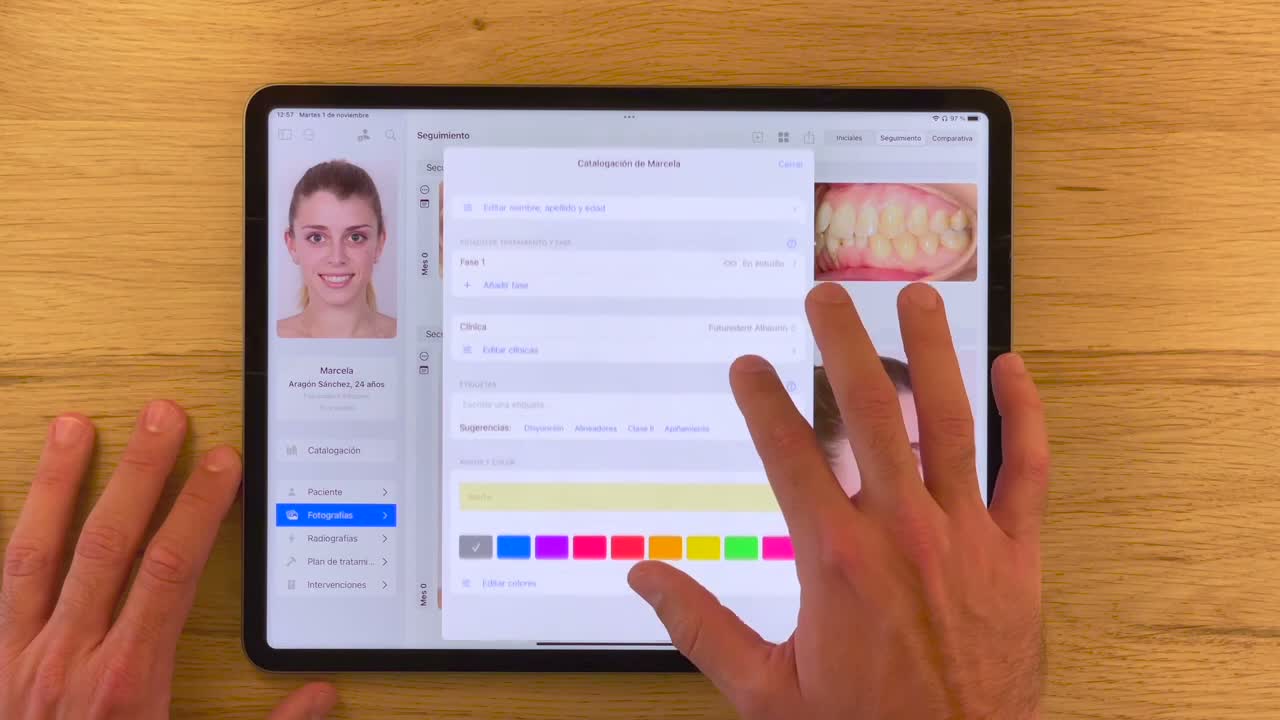
Prepare Follow-Up
- Open the patient and go to photos.
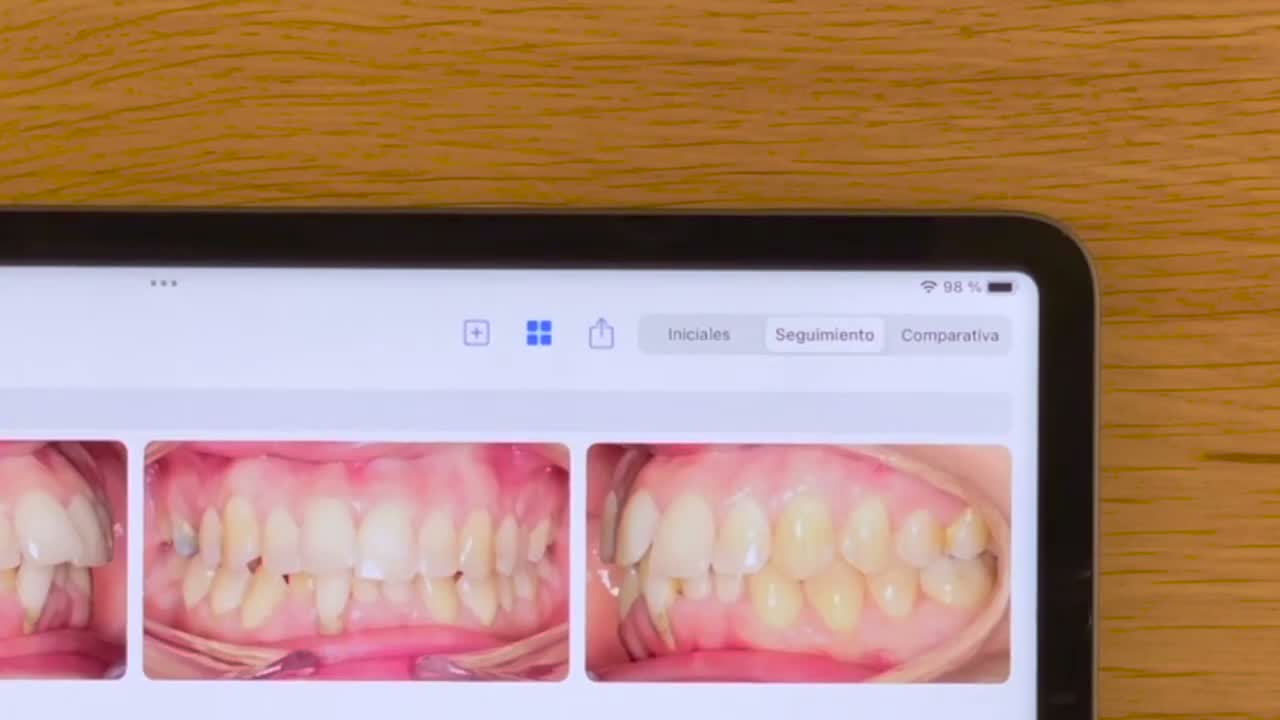
- Switch to the
Follow-Uptab. - Review the layout: intraoral photos at the top and extraoral photos below.
- Before adding new photos, go to
Cataloging. - Change the patient’s status to
In Treatment.
Add Photos from a Visit
- Return to photos and tap
Add Sequence. - Import the photos from that follow-up visit.
- On the left, observe the number of months elapsed since the start of treatment.
- Tap that month indicator to open the sequence annotations window.
- From that window you can add notes, choose a highlight color or correct the date.
- If a sequence has annotations, OrthoKit indicates it with a small bubble.
- Repeat
Add Sequencefor each visit.
When you close the treatment, return to Cataloging and change the status to Finished. OrthoKit will calculate the final date from the last dragged photo. You can also keep adding photos afterward to monitor retention.
Compare and Delete
In Comparison, select the two dates you want to compare and review the direct progress between them.
To delete a specific photo, long-press it and choose delete. To delete a full row, select the row from the control on the left and tap Delete Sequence.
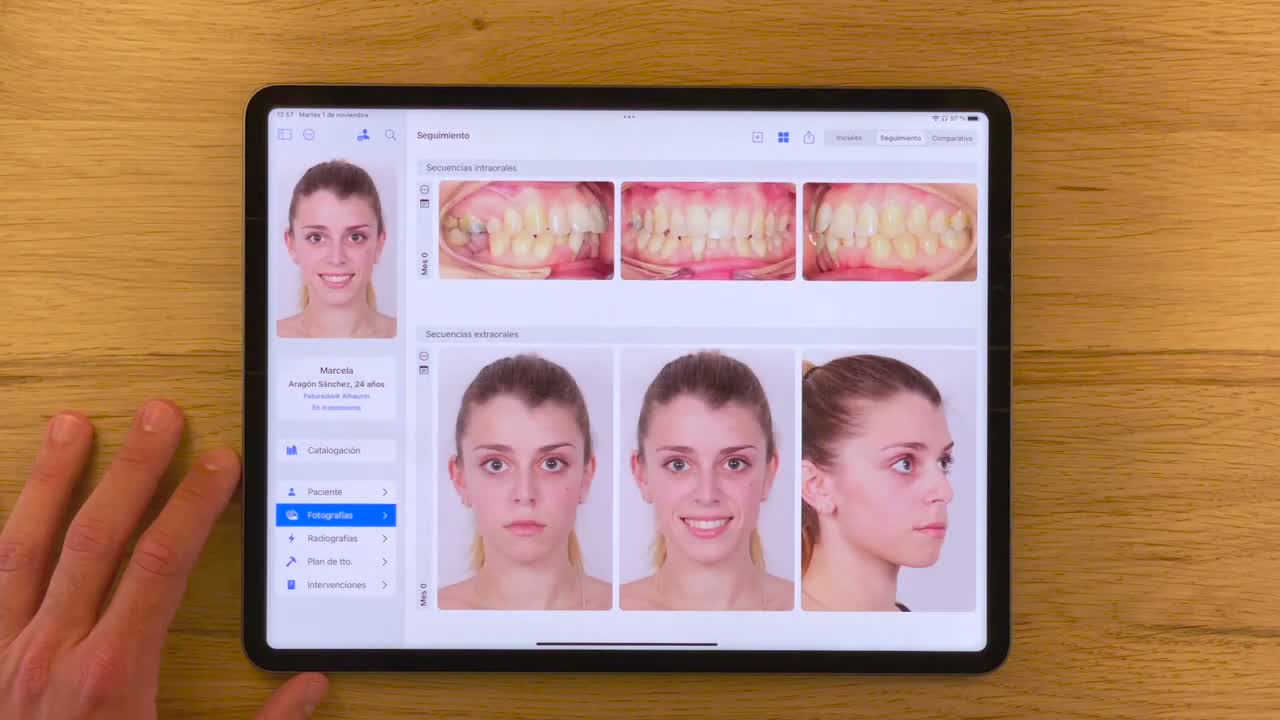
Treatment Statuses
OrthoKit uses the patient’s status to organize the list and calculate timings. The main statuses are Study, In Treatment, Finished, Dismissed and, in recent versions, Referred.