OrthoKit stores patient information across a database and a folder structure with photos, radiographs and documents. This tutorial explains how to locate those files, export backups and use recovery mode when you need to recover a deleted patient.
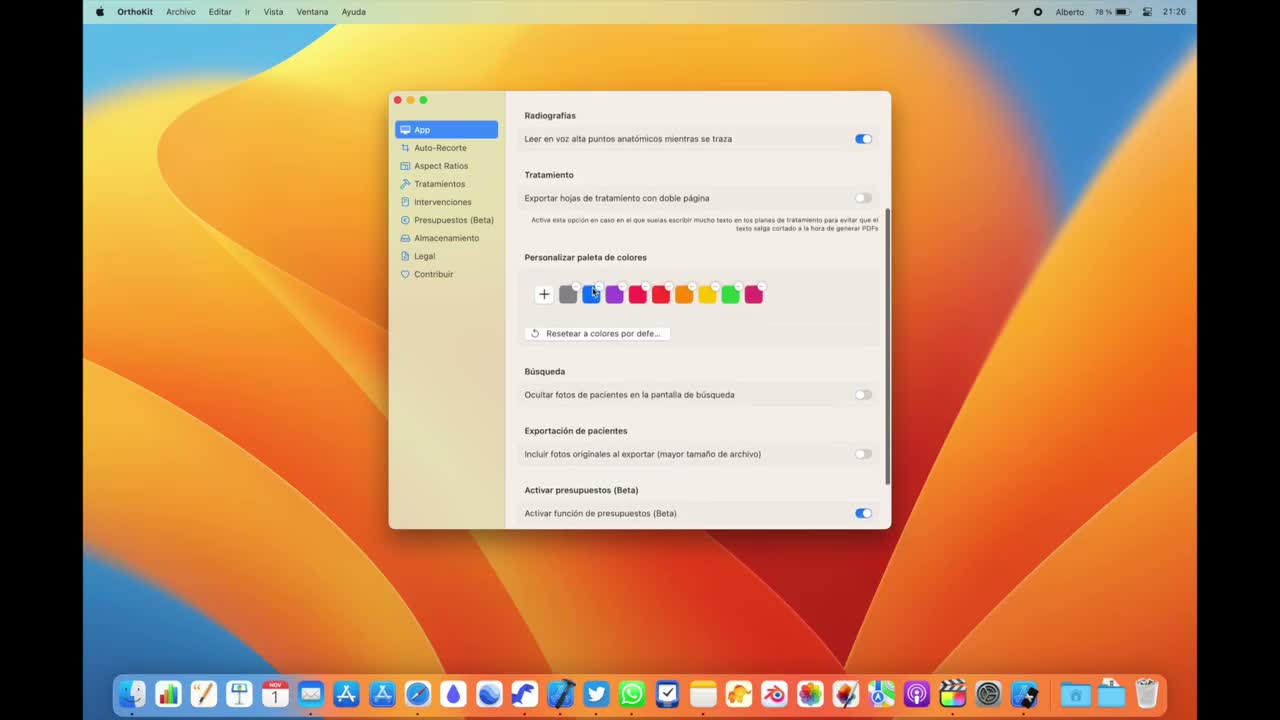
Before You Start
- Do not manually delete internal folders.
- Before changing storage settings, confirm that you have a recent backup.
- If you use iCloud, wait until the files have downloaded before exporting backups.
Locate the Files
- Open a patient in OrthoKit.
- Click
Open in Finderat the bottom of the sidebar. - Review the patient’s folder structure: photos, radiographs, documents and other records.
- Open
Settingsand go to the storage section. - Check whether OrthoKit is saving data only on the hard drive or syncing it with iCloud.
Create a Backup
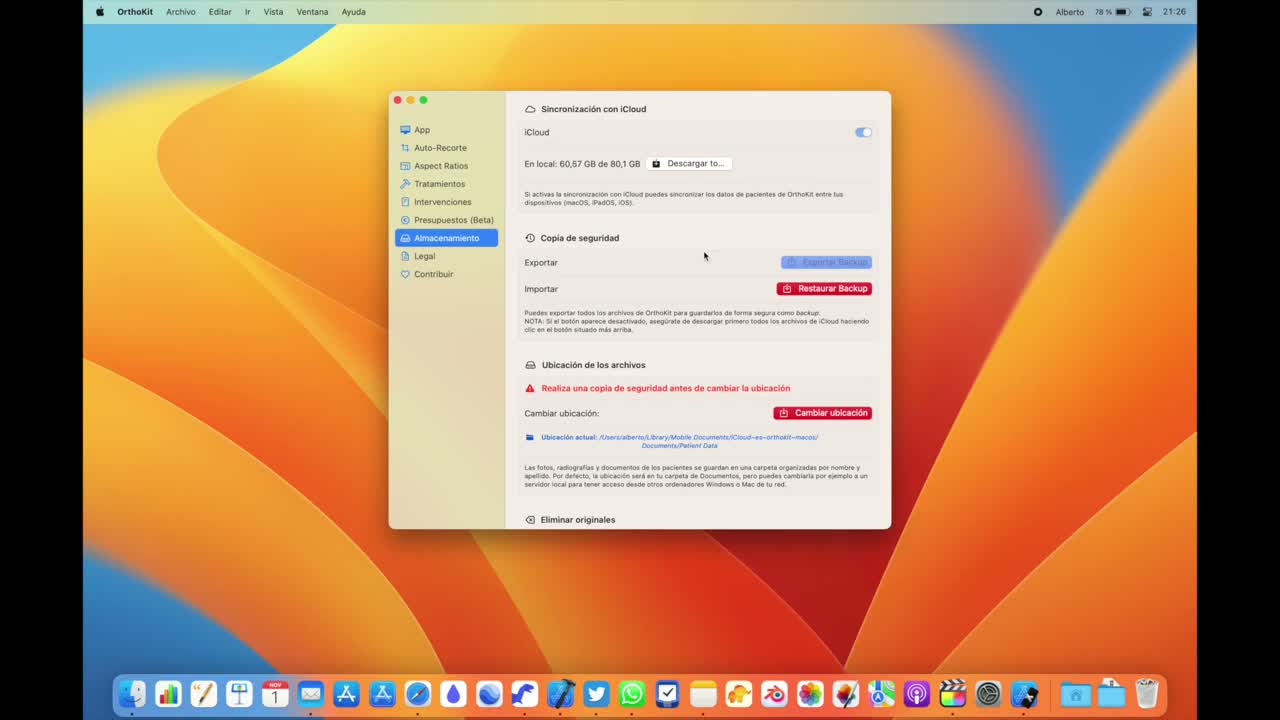
- In storage, use
Export Backup. - If the button is disabled, click
Download Alland wait for iCloud to download the missing files to the computer. - Save the backup in an external location or somewhere controlled by the clinic.
- If you need to change the file location, do it from the storage panel rather than moving folders manually.
- Use this option only if you understand the change or after speaking with technical support.
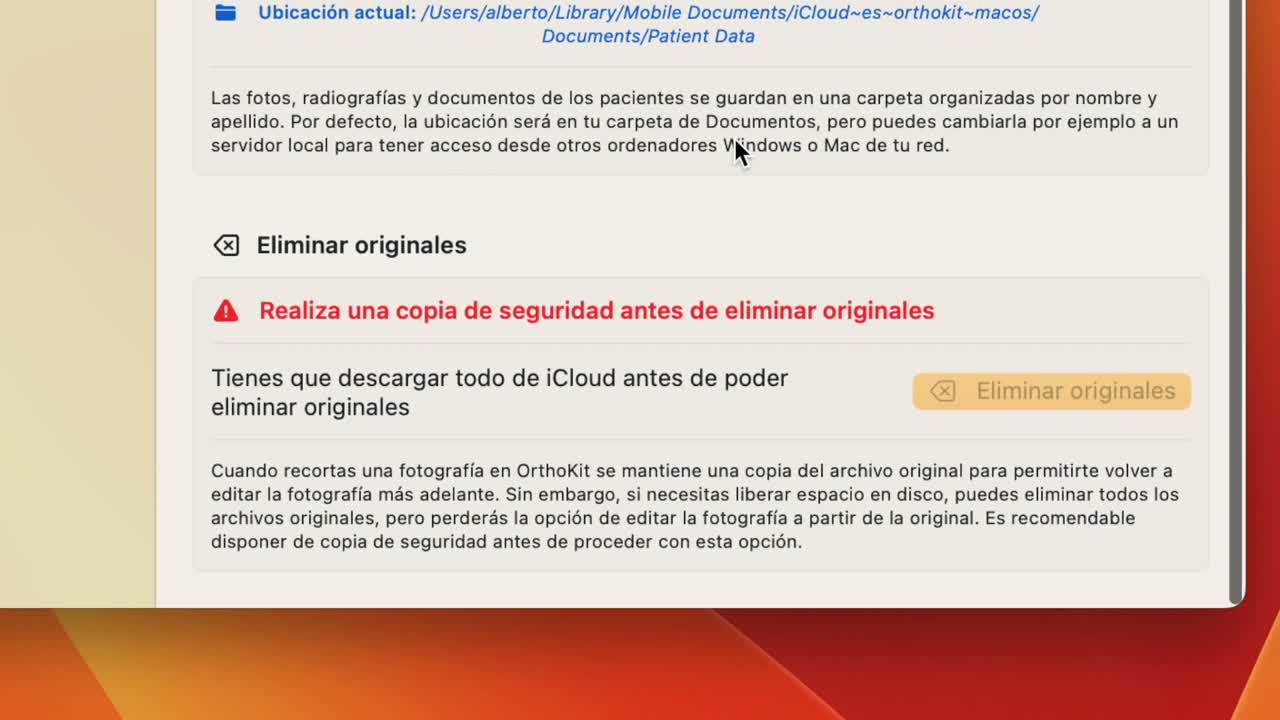
If you need to free up space, you can delete original photos from OrthoKit. Bear in mind that if you delete originals, you will not be able to recrop a poorly cropped photo from its initial image.
Recover Deleted Patients
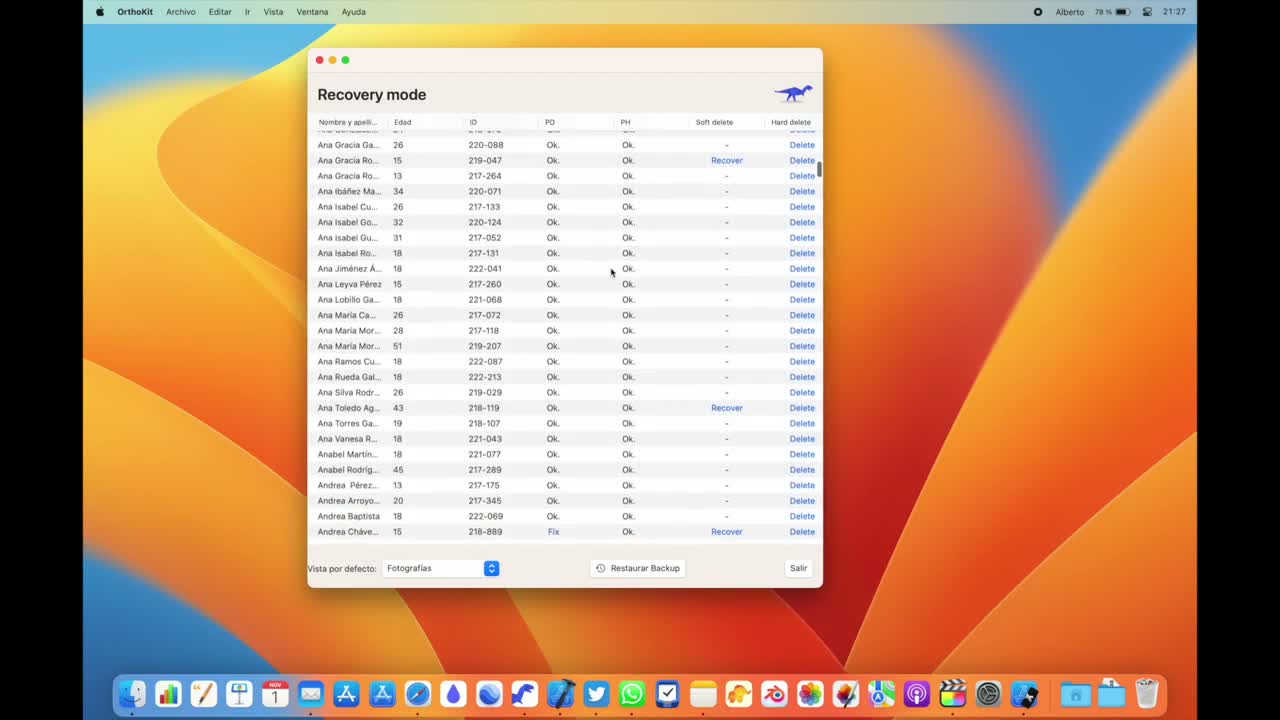
- To enter recovery mode on Mac, open OrthoKit while holding the
Altkey. - Click
Recoverto recover a deleted patient. - Click
Deleteonly if you want to delete it permanently, including its photos from the computer.
Warnings
- The SQL database and the file folders work together. Do not move one part without controlling the other.
- Changing the location to Google Drive, Dropbox or another folder can be useful, but it must be done carefully.
Deletein recovery mode is destructive: it permanently deletes the patient and their files.- The remaining recovery mode options are intended for technical support.