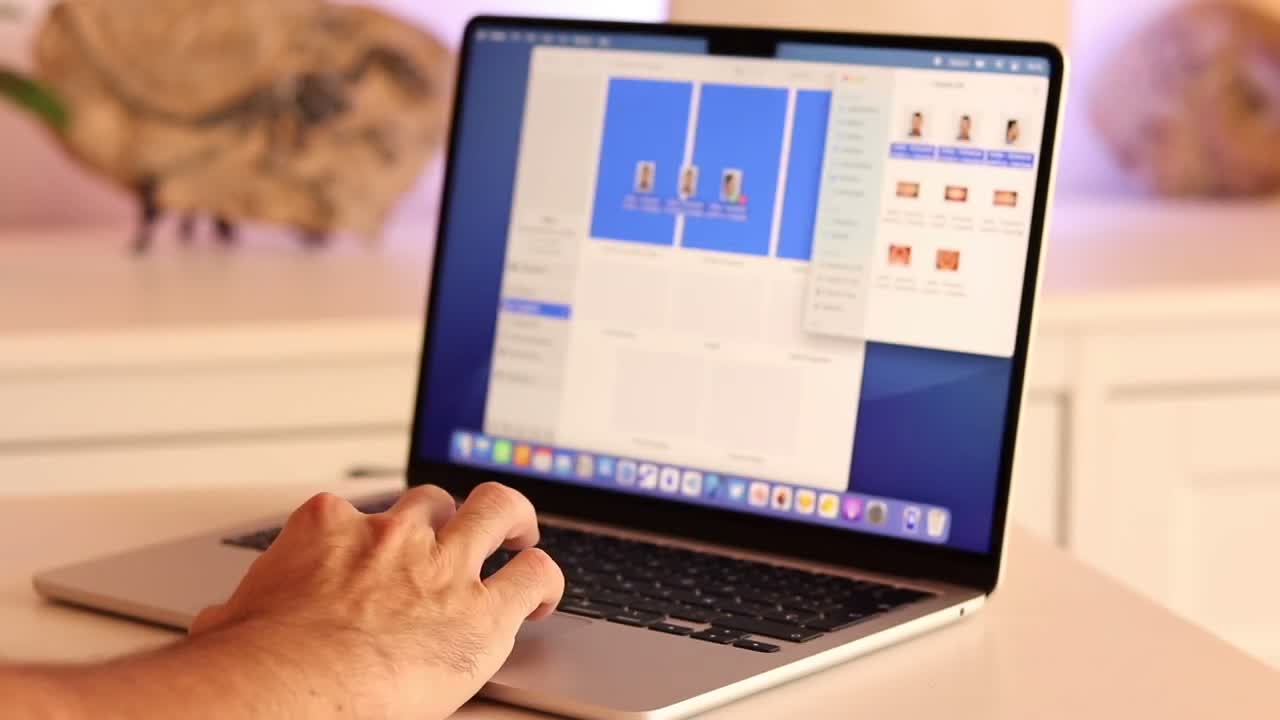
When all the photos from a visit are in one folder, you do not need to place them one by one. OrthoKit can fill several slots at once, sort them by capture date and, on compatible Macs, help you distinguish extraoral and intraoral photos using artificial intelligence.
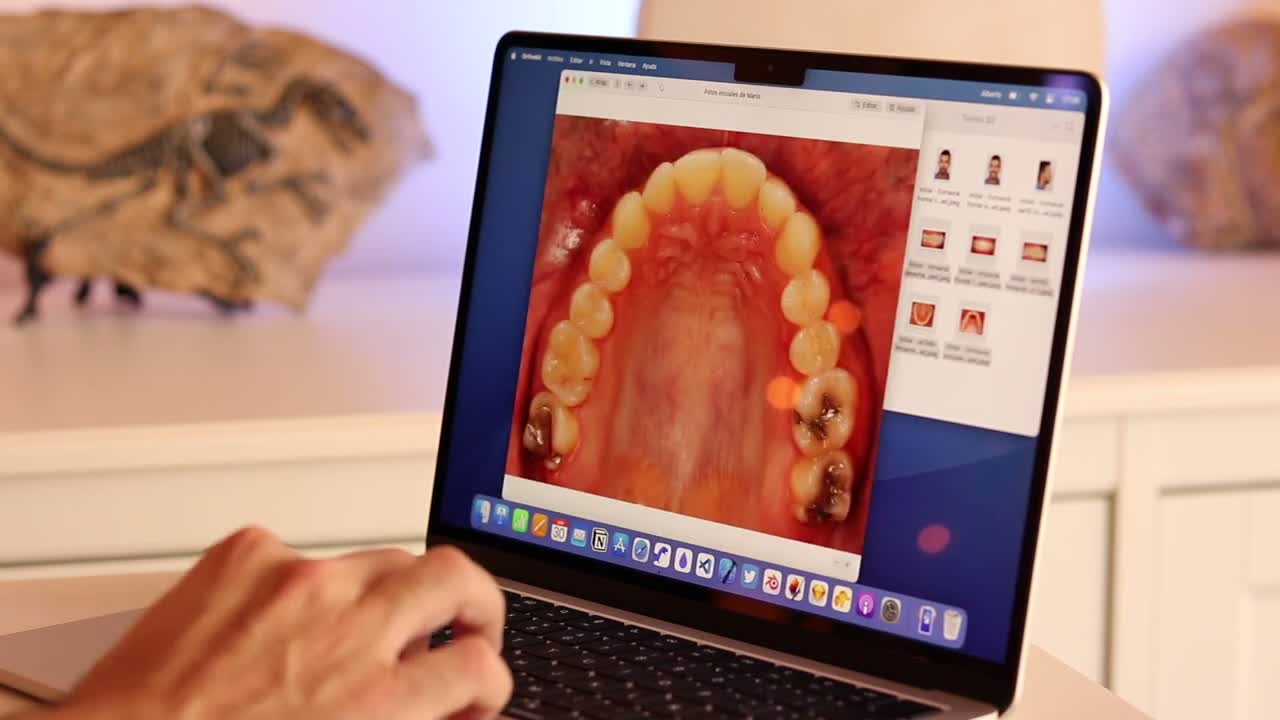
Before You Start
- Group the photos in one folder.
- Check how many slots the active template has.
- If you are not going to use artificial intelligence for classification, always take or select the photos in the same order.
Import in Blocks
- Open the patient and go to
Photos. - To start in a controlled way, import only the extraoral photos first.
- Select the same number of files as the number of extraoral slots in your template.
- Drag them to any extraoral slot.
- Repeat the process with the intraoral photos, selecting no more than the number of intraoral slots.
- OrthoKit sorts the images by capture date and fills the template from left to right and top to bottom.
- If a photo ends up in the wrong position, drag it onto another one to swap them.
Import Everything at Once
- Open
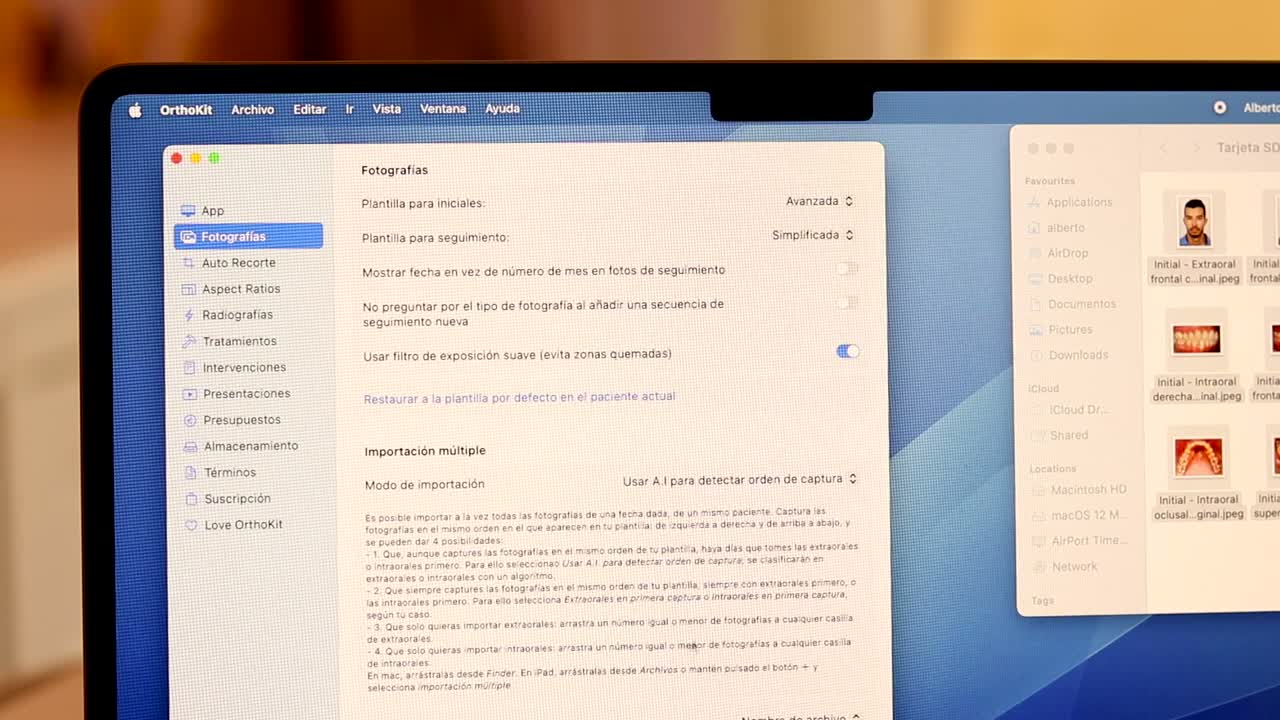
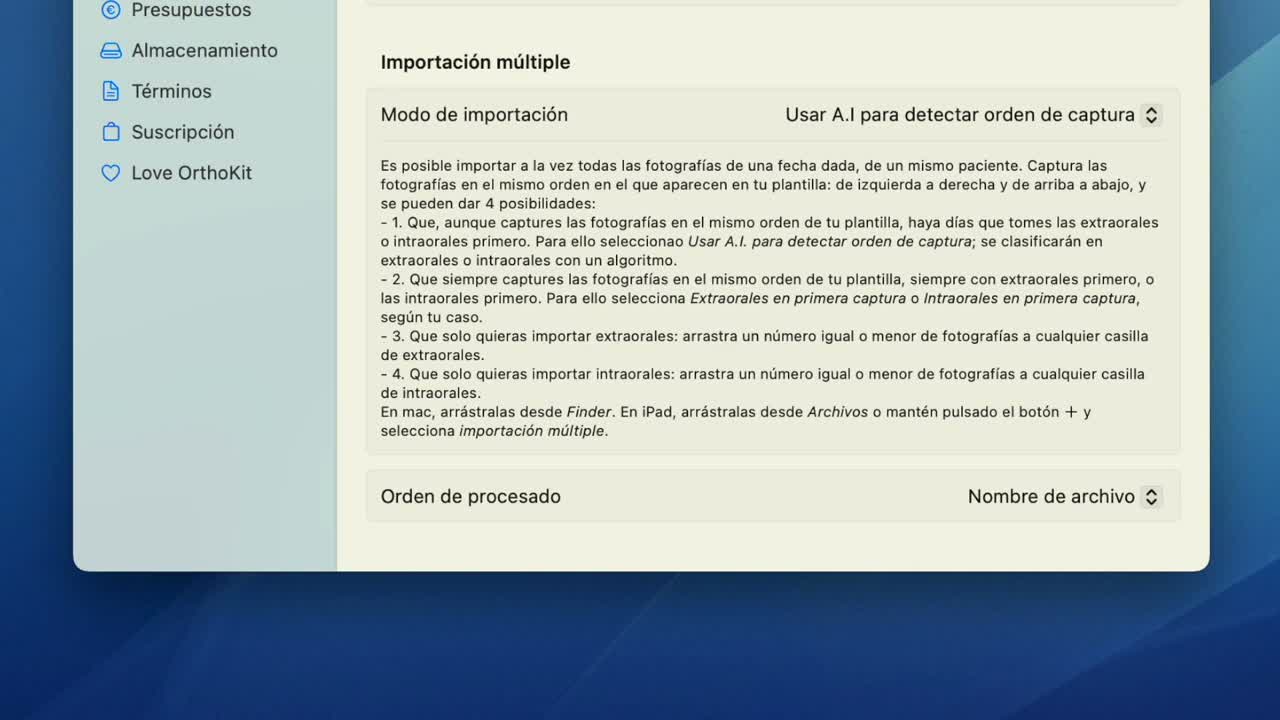
OrthoKit > Settings > Photography. - On Macs with Apple Silicon, you can use the artificial intelligence algorithm to distinguish extraoral and intraoral photos.
- On Intel Macs, enable that algorithm only if performance is acceptable.
- If you do not use AI, indicate whether your workflow captures extraoral photos first or intraoral photos first.
- Drag the full block of photos.
- Review the template before considering the record complete.
For initial photos, if you drag in more files than available slots, the extra files are discarded. During follow-up, OrthoKit can create new slots to accommodate extra photos and classify them by date.
Best Practices
- Import by patient; do not mix folders from different people.
- Check for duplicates before generating reports.
- If you always take photos in the same order, the workflow will be more predictable even without AI.
- For initial records, do not drag in more photos than slots unless you are comfortable with some being discarded.