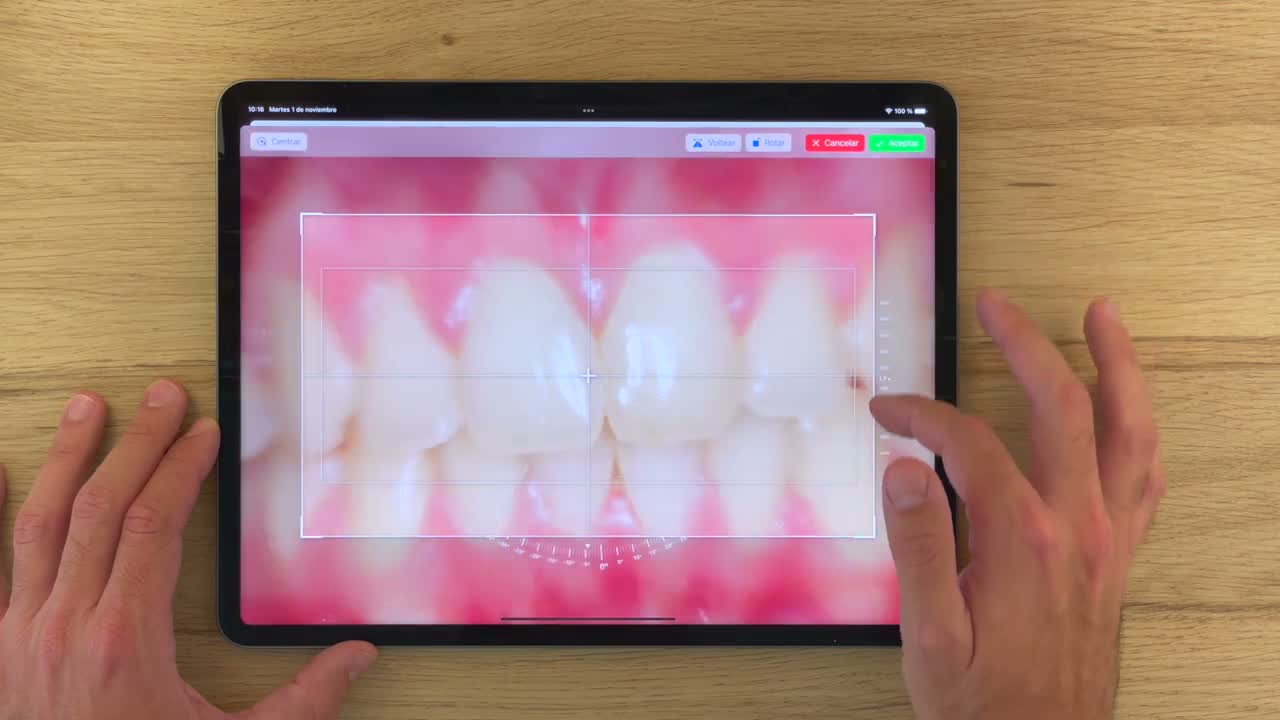
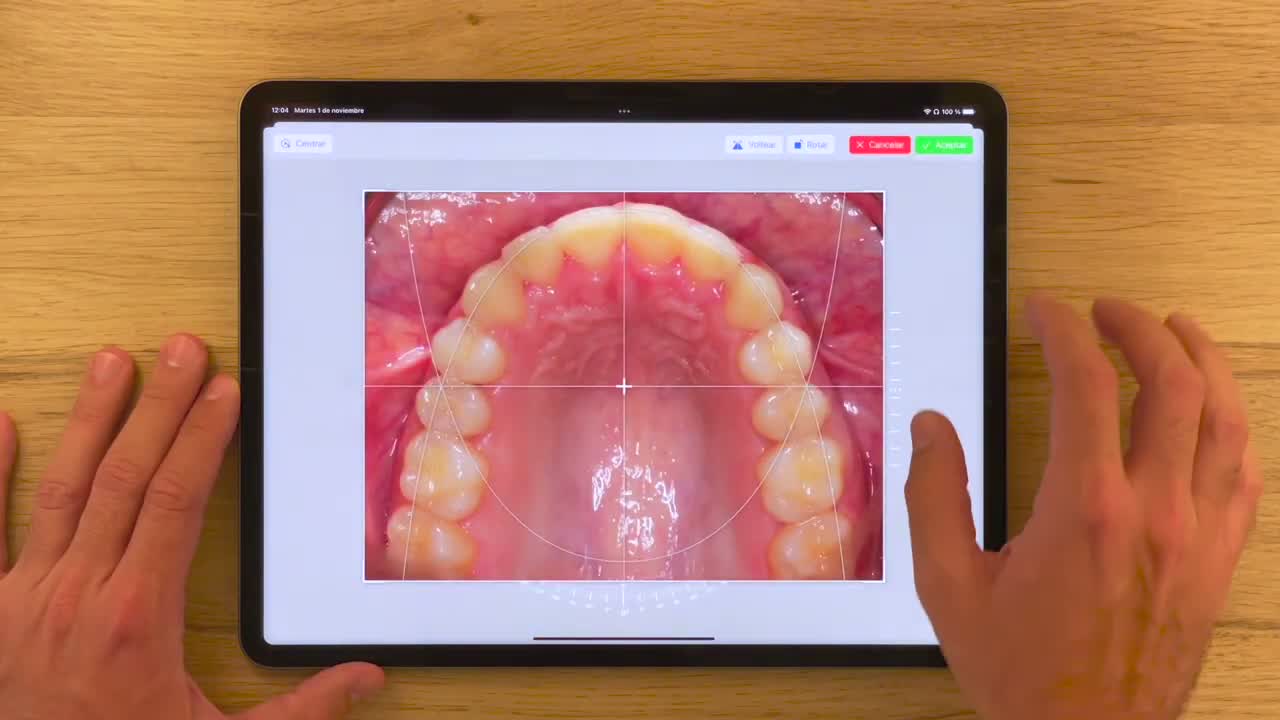
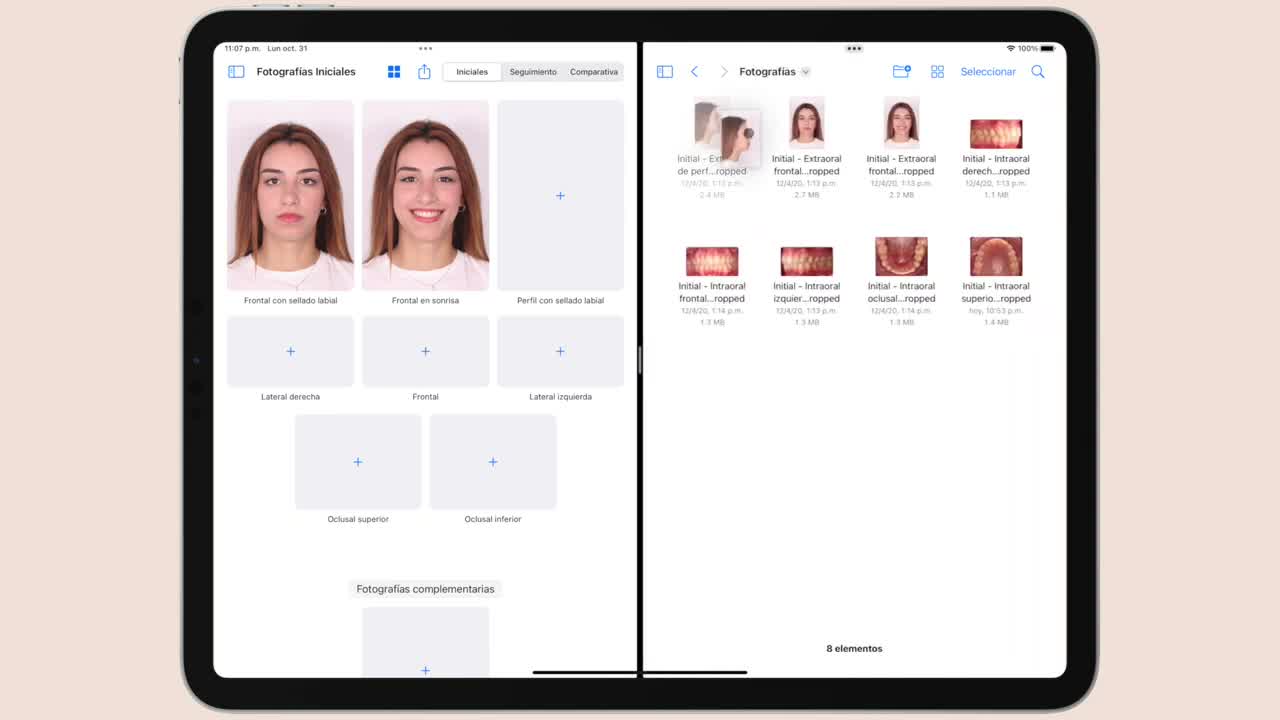
On iPad, you can import photos from Photos, from Files or directly from an SD card using Split View. You can then review each image, correct the framing, rotate, flip and export the full set as a PDF.
Before You Start
- Have a patient created and open.
- Prepare the photos in Photos, Files or on an SD card accessible from the iPad.
- Grant photo access permissions if iPadOS requests them.
Import from Photos
- Open OrthoKit and select the patient.
- Go to photos.
- Tap the
+button in the center of each empty slot. - Choose the correct photo from the iPad gallery.
- Repeat the process with frontal at rest, frontal smiling, profile and intraoral photos.
Import from Files
- If the photos are on an SD card, tap the three dots at the top.
- Open
Split Viewand place the Files app next to OrthoKit. - In Files, open the SD card folder.
- Drag each photo from Files to its corresponding slot in OrthoKit.
- Close Split View when finished.
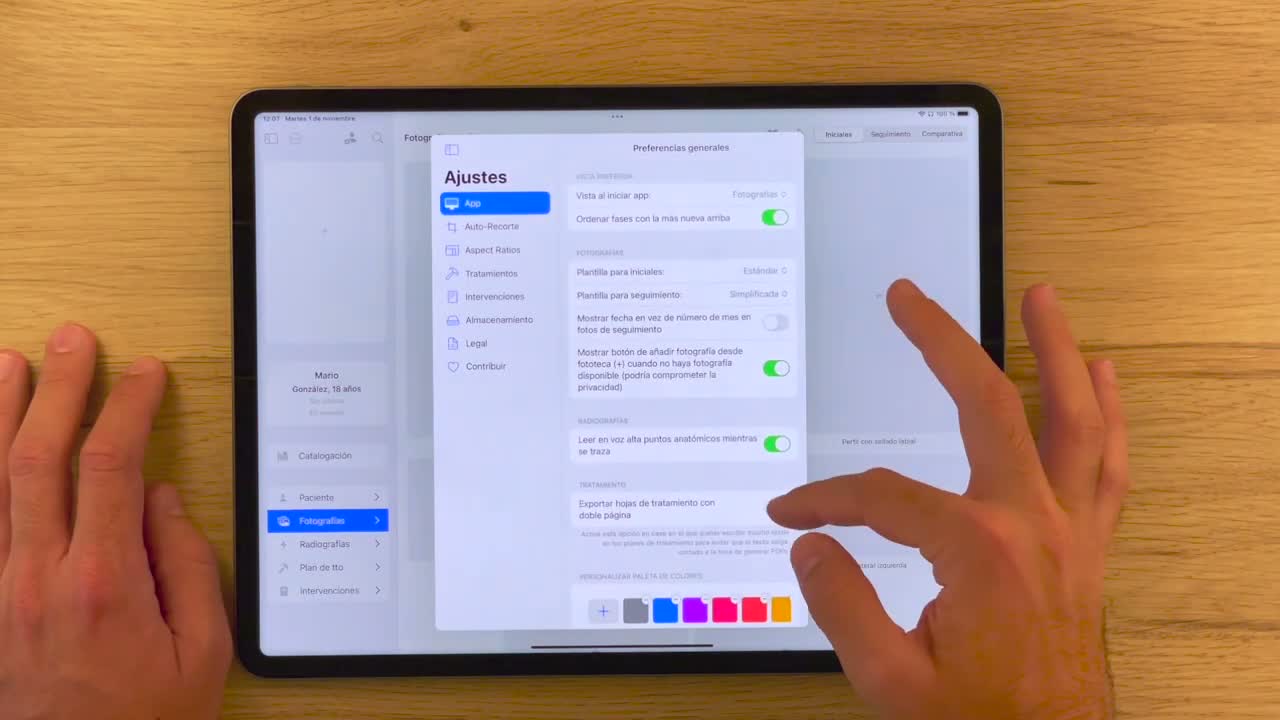
If you do not want your personal gallery to open every time you tap an empty slot, go to OrthoKit settings and disable Show button to add photos to a patient.
Review and Crop
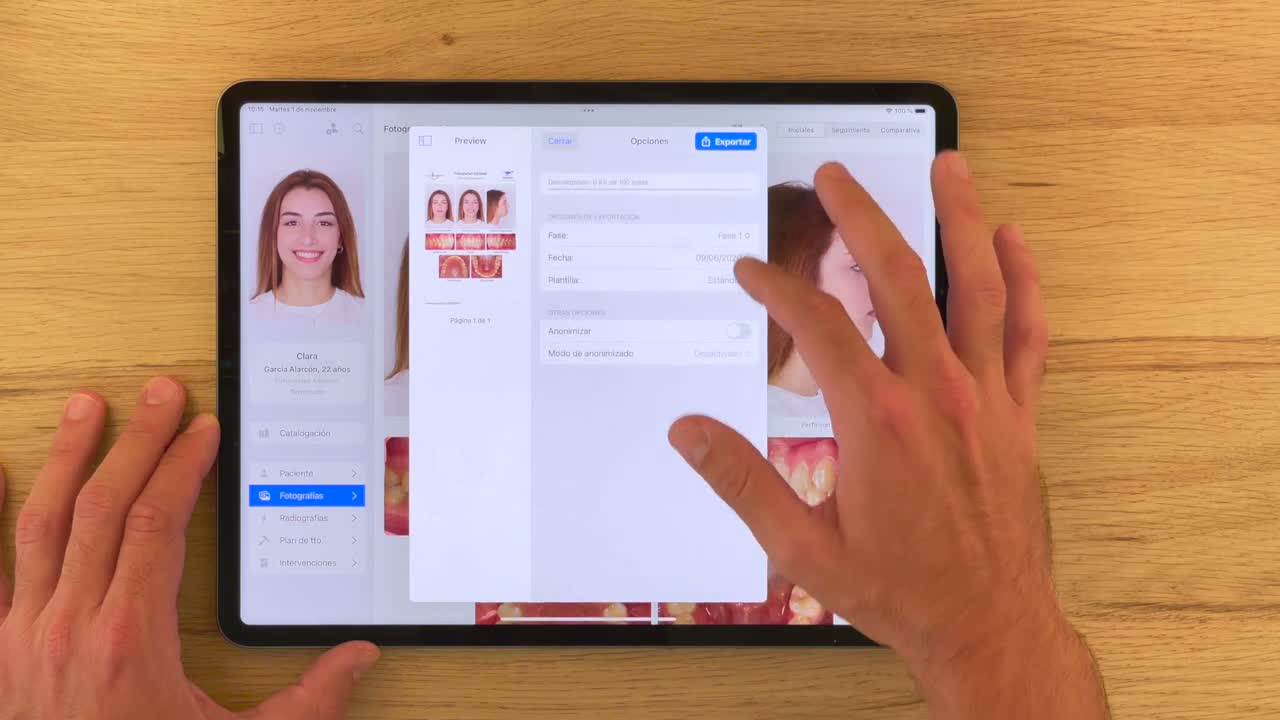
Long-press a photo to delete it, view its location in Files or share it with another app. You can also export all photos as a PDF template if you need to take them together into another app.
- Tap a photo to open it full screen.
- Use zoom to review it and switch between photos if you need to compare framing.
- Enter crop mode to align the image better.
- Use double tap or the center button to undo the edit.
- Rotate 90 degrees with the dedicated button, or level with the lower slider if you only need a small correction.
- In occlusal photos, use the ovoid guides to center the arch.
- Use the flip button when necessary. OrthoKit will remember that the photo is flipped.
Common Issues
| Issue | What to do |
|---|---|
| The personal gallery opens when I tap a slot | Disable the add-photo button from OrthoKit settings. |
| The photos are on an SD card | Use Split View with Files and drag each image to its slot. |
| An occlusal photo is inverted | Use the flip button; OrthoKit will remember that state. |
| I do not like the crop | Use double tap or Center to return to the original framing. |