Keynote Builder turns a Keynote template you design into automatic presentations of each patient’s study. You prepare the template once —colors, typography, layout, logos and image placeholders— and OrthoKit fills it in seconds with real data: name, age, clinical photographs, radiographs, cephalometric tracings, interventions and budgets.
This guide is designed to start from scratch, with no previous experience with templates or technical knowledge.
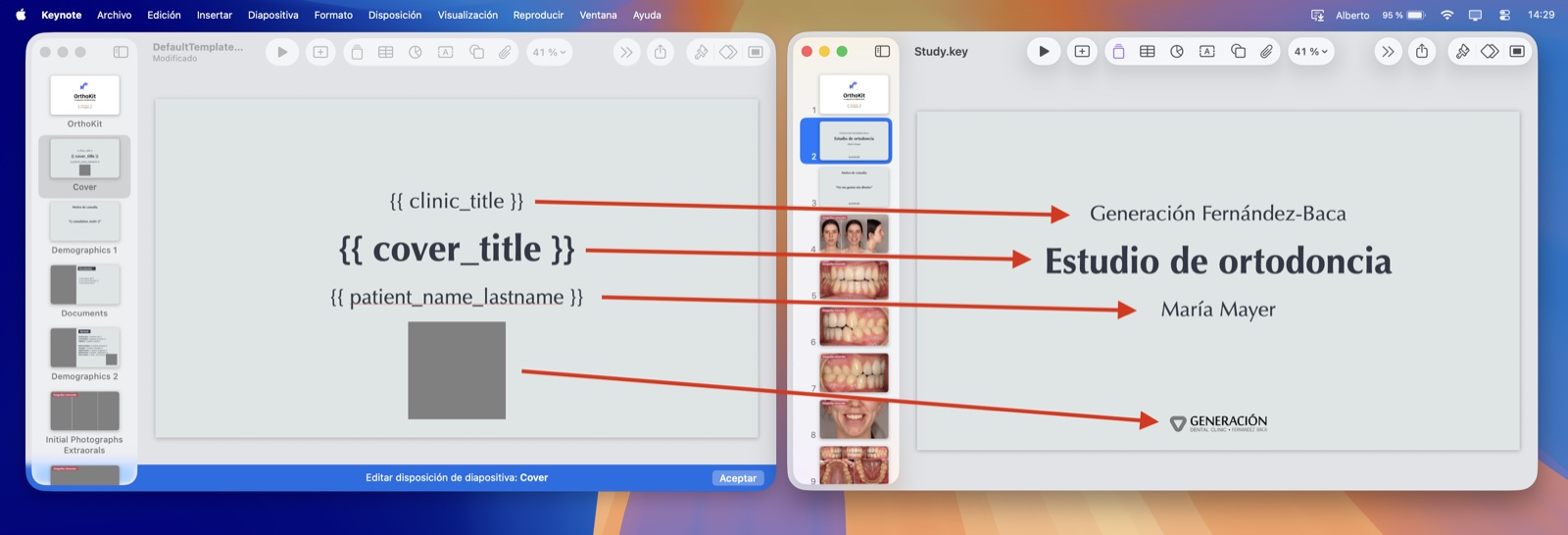
What you will be able to achieve
- Your own design. Colors, typography, backgrounds, your clinic’s logos and the exact layout of each slide.
- Automatic patient data. Name, age, gender, ID, date of birth, allergies, reason for consultation and other information are inserted automatically.
- Clinical photographs in place. Frontal, profile, smile, occlusal, etc. Each type of photograph fills the slot you choose.
- Radiographs and cephalometrics. Included with date, type, analysis and annotations.
- Budgets and treatment plan. With title, date, amount, acceptance status and other fields.
- One-click export. No importing files or configuring slide ranges.
Difference from the old PowerPoint exporter
OrthoKit keeps the old exporter for compatibility with existing studies, but its use is discouraged for new patients.
Before · PowerPoint / ODP
- You prepared the template in PowerPoint or LibreOffice.
- You saved it specifically in
.odpformat (OpenDocument Presentation); the.pptxformat was not supported. - You dragged the
.odpfile into OrthoKit to import it. - You opened the “sections configurator” and manually assigned which slide range corresponded to each section.
- You adjusted additional options: radiograph replacement mode, photograph search criteria, number of interventions per slide, etc.
- Any change required re-exporting, re-importing the file and reconfiguring the ranges.
Now · Keynote Builder
- You press Create new template in OrthoKit.
- Keynote opens automatically with a copy of the template.
- You edit it like any presentation and save with ⌘S.
- It becomes active with no further steps: no import, no section configurator, no intermediate format.
- Any later adjustment is applied by opening the template, editing it and saving. Subsequent studies pick up the changes.
Essential concepts
Three terms appear throughout the guide. Knowing them in advance simplifies the rest of the document.
Section
Each of the thematic blocks in the patient’s study: Cover, Initial photographs, Radiographs, Treatment plan, Budgets, among others. OrthoKit has fourteen predefined sections; you can enable/disable each one in the patient’s study export view, as well as customize what appears in each. Each section generates one or more slides in the final presentation.
Master slide
An internal Keynote template that does not appear as such in the final presentation: it acts as a mold. It defines the background, the colors, the typography and the placement of text boxes and images.
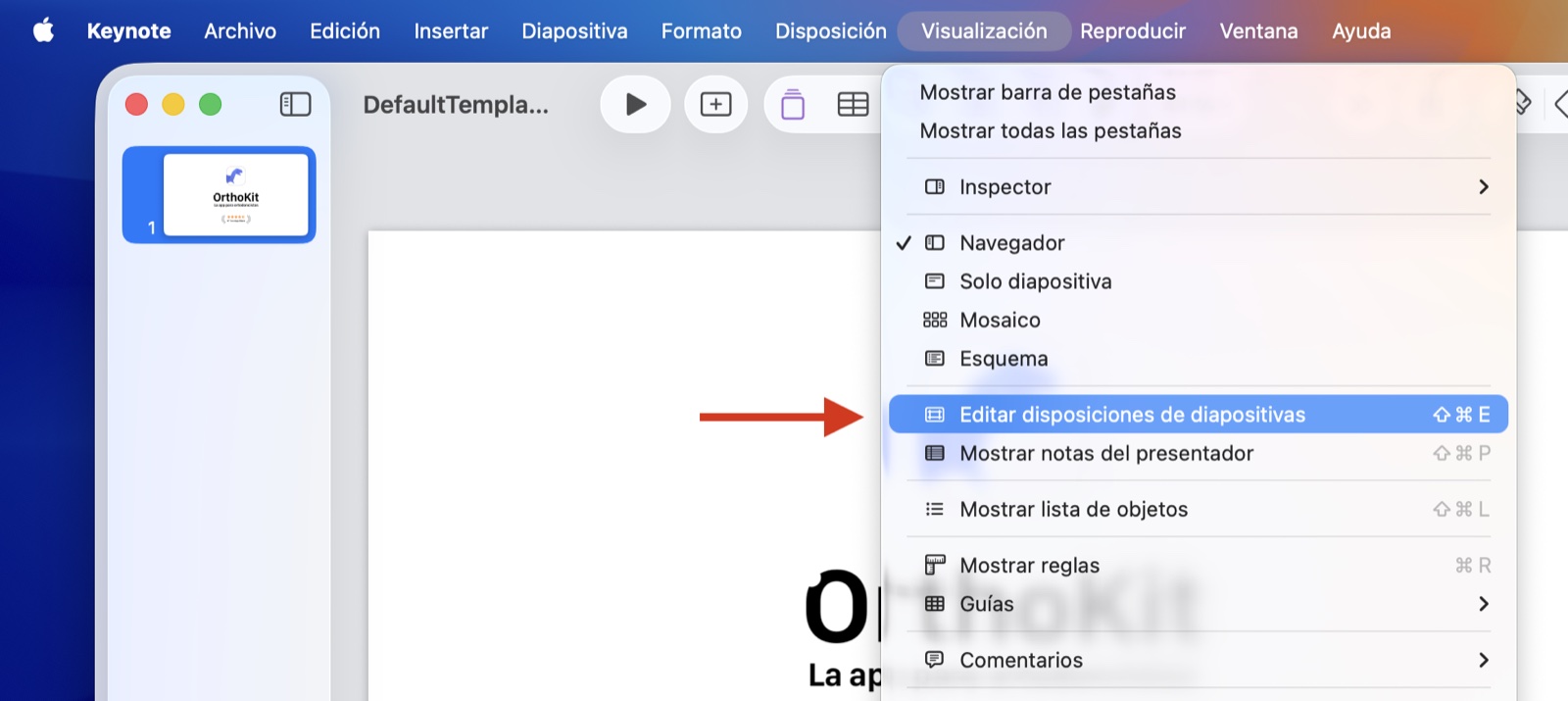
In Keynote you access the master slides from View › Edit Slide Layouts. OrthoKit starts from them to build each patient’s study.
Replacement code
Text in the form {{ something }} written inside a slide that OrthoKit recognizes and substitutes with the real patient data when generating the study.
There are text codes (for example {{ patient_name_lastname }}) and image codes (for example {{ radiograph }}).
How to start
OrthoKit always starts from a copy of the default template, which is personalized from that point on. It is not necessary to create a file from scratch.
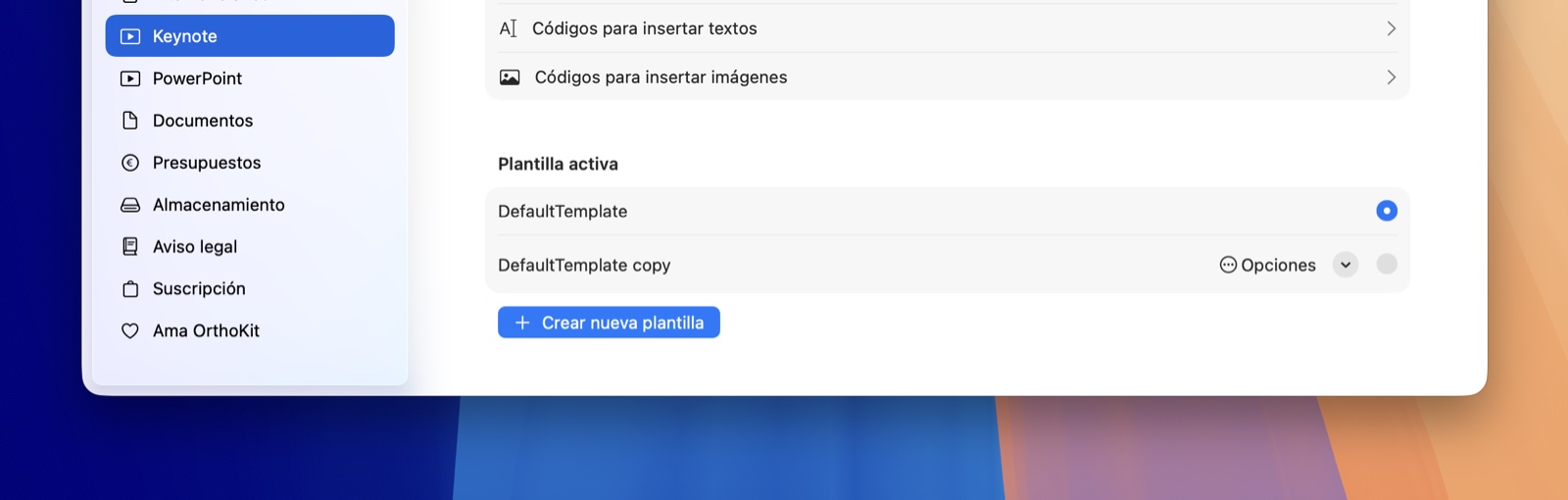
Open OrthoKit. Go to Settings › Keynote Builder.
Press “Create new template”. OrthoKit duplicates the default template, marks it as active and opens it directly in Keynote.
Enter master slides mode in Keynote. Top menu: View › Edit Slide Layouts. The left sidebar shows the list of available master slides (Cover, Demographics, Radiographs, etc.).
Edit each master slide. Change backgrounds, typography, colors and the placement of text boxes and images. Two requirements: each master slide must keep a name that associates it with its section (Pillar 1) and must contain the codes in the form
{{ ... }}that you want to fill in (Pillars 2 and 3).Save with ⌘S and close Keynote. The template becomes active automatically. Any subsequent export will use it.
You can keep several templates saved (for example, one for initial studies and another for follow-ups) and switch between them at any time from Settings › Keynote Builder › Active template.
How it works
When exporting a study, OrthoKit goes through the enabled sections. For each section it looks for master slides whose name contains the associated keyword, clones them as many times as needed (one for each photograph, radiograph or budget to display) and fills the codes with the real patient data.
The system is built on three pillars:
- Pillar 1 · Master slide names. Each section has a keyword (for example
Coverfor the cover page). Any master slide whose name contains that keyword is included when generating that section. - Pillar 2 · Text codes. Inside a text box you write
{{ code }}and OrthoKit replaces it with the real patient data. - Pillar 3 · Image codes. The code is written in the Description field of each image (Keynote’s side inspector), and OrthoKit replaces it with the corresponding real image.
Pillar 1 · Master slide names
Each of OrthoKit’s fourteen sections is associated with an English keyword, which corresponds to its internal identifier. The name of a master slide must contain that keyword so OrthoKit associates it with the corresponding section.
How to rename a master slide in Keynote
- In Edit Slide Layouts mode, click on the master slide name in the left sidebar (it appears above the thumbnail).
- Type the new name (for example,
Cover) and press Enter.
Keyword table by section
| Section in OrthoKit | Name keyword |
|---|---|
| Cover | Cover |
| Demographics and medical data | Demographics |
| Documents (PDFs, consents, etc.) | Documents |
| Initial photographs | Initial Photographs |
| Extraoral follow up | Extraoral Follow Up |
| Intraoral follow up | Intraoral Follow Up |
| Comparatives (before / after) | Comparative Photographs |
| Radiographs | Radiographs |
| Cephalometrics (tracings) | Cephalometrics |
| Cephalometric superimposition | Superimposition |
| 3D models | 3D Models |
| Treatment plan | Treatment Plan |
| Interventions (visit history) | Interventions |
| Budgets | Budgets |
Name matching rule
The master slide name must contain the keyword, respecting uppercase and lowercase. Using the cover (keyword: Cover) as an example:
- ✓
Cover· exact name, works. - ✓
Cover 1,Cover 2· both are generated each time a study includes the cover. - ✓
Cover Minimalist,My Cover Dark· work; the name contains the keyword. - ✗
Portada· does not contain the keyword; it will not be used. - ✗
cover· matching is case-sensitive.
Avoid combining two keywords in the same name. A name like
Cover · Radiographswould make the same master slide be used for both covers and radiographs, which is rarely desirable.
Multiple master slides equal multiple variants. To alternate three different cover designs, create three master slides called
Cover,Cover VerticalandCover Minimalist. All three will be generated in every study that includes a cover.
Section title slide · keyword Title
When a section generates many slides (radiographs, 3D models, follow-ups, budgets, etc.), it is often useful for the first of them to be a section title slide — a full-page heading with the section name — appearing only once, not before every radiograph or every budget.
To achieve this, simply ensure that the master slide name contains, in addition to the section keyword, the word Title. OrthoKit will treat it as a section header and add it only once at the beginning of the section, even if the section contains many items.
Examples of valid names:
Radiographs Title· section header for the radiographs section; appears once even with 12 radiographs.3D Models Title· section header for the 3D models section.Documents Title,Treatment Plan Title,Budgets Title, etc.
Export example
Imagine a template with five master slides: Cover, Radiographs Title, Radiographs, Treatment Plan Title and Treatment Plan. When exporting a study with three radiographs, OrthoKit produces the following sequence:
| # | Master slide | Notes |
|---|---|---|
| 1 | Cover | study cover |
| 2 | Radiographs Title | only once |
| 3 | Radiographs | radiograph 1 |
| 4 | Radiographs | radiograph 2 |
| 5 | Radiographs | radiograph 3 |
| 6 | Treatment Plan Title | only once |
| 7 | Treatment Plan | treatment plan content |
Radiographs Title appears once even with three radiographs, whereas Radiographs is replicated for each one. The treatment plan section does not iterate, so Treatment Plan Title and Treatment Plan come out once, back to back.
Pillar 2 · Text codes
Inside a master slide, add Keynote text boxes and write {{ code }} where you want OrthoKit to insert the real data. The code can appear on its own or embedded in a sentence.
Example
Paciente: {{ patient_name_lastname }}
Edad al inicio: {{ complete_age }}
Fase: {{ phase_title }} ({{ phase_idx }})
Documento emitido el {{ doc_creation }}
When exporting the study, OrthoKit turns that block into something like:
Paciente: Marta García Pérez
Edad al inicio: 8 años y 4 meses
Fase: Fase activa (1 de 2)
Documento emitido el 24 abr 2026
General codes
Available in any section and in any master slide.
| Description | Code |
|---|---|
| Document creation date (today) | {{ doc_creation }} |
| Clinic name | {{ clinic_title }} |
| Active phase title | {{ phase_title }} |
| Phase index (for example, “1 of 3”) | {{ phase_idx }} |
| Phase start date | {{ phase_creation }} |
Patient codes
Available in Cover, Demographics, Documents and Treatment Plan.
| Description | Code |
|---|---|
| First name | {{ patient_onlyName }} |
| Last name | {{ patient_onlyLastname }} |
| First and last name | {{ patient_name_lastname }} |
| Summary (name · age · gender) | {{ patient_summary }} |
| Patient identifier | {{ patient_id }} |
| Gender | {{ patient_gender }} |
| Tags | {{ patient_tags }} |
| Date of birth | {{ patient_birthdate }} |
| Full age (for example, “8 years and 4 months”) | {{ complete_age }} |
| Age with unit (for example, “8 years”) | {{ patient_age }} |
| Years only | {{ age_years }} |
| Residual months only | {{ age_months }} |
| Patient registration date | {{ patient_creation }} |
Section-specific codes
Each section also provides its own codes.
Cover · master slide: Cover
| Description | Code |
|---|---|
| Cover title | {{ cover_title }} |
| Doctor’s name | {{ cover_doctor }} |
| Medical alert | {{ patient_alert }} |
If the study has a single phase, {{ phase_title }} and {{ phase_idx }} are left empty on the cover to avoid lines without information.
Demographics · master slide: Demographics
| Description | Code |
|---|---|
| Occupation | {{ patient_job }} |
| Activities | {{ patient_activities }} |
| Habits | {{ patient_habits }} |
| Diseases | {{ patient_diseases }} |
| Reason for consultation | {{ consulation_motiv }} |
| Allergies | {{ patient_allergies }} |
| Surgeries | {{ patient_surgeries }} |
| Medication | {{ patient_medication }} |
| Other information | {{ other_information }} |
{{ patient_email }} | |
| Address | {{ patient_address }} |
| Phone | {{ patient_phone }} |
| Medical alert | {{ patient_alert }} |
Documents · master slide: Documents
| Description | Code |
|---|---|
| File name | {{ document_filename }} |
| File date | {{ document_date }} |
| Document index (for example, “1 of 4”) | {{ document_idx }} |
Initial Photographs · master slide: Initial Photographs
| Description | Code |
|---|---|
| Session date | {{ initials_date }} |
| Annotations | {{ initials_annotation }} |
Extraoral and intraoral follow up · master slides: Extraoral Follow Up, Intraoral Follow Up
| Description | Code |
|---|---|
| Follow-up moment description | {{ sequence_monthDescription }} |
| Sequence date | {{ sequence_date }} |
| Sequence annotation | {{ sequence_annotation }} |
| Follow-up index (for example, “2 of 5”) | {{ tracking_idx }} |
Radiographs · master slide: Radiographs
| Description | Code |
|---|---|
| Radiograph type | {{ radio_title }} |
| Date | {{ radio_date }} |
| Annotation | {{ radio_annotation }} |
| Radiograph index (for example, “1 of 4”) | {{ radio_idx }} |
Cephalometrics · master slide: Cephalometrics
| Description | Code |
|---|---|
| Tracing title | {{ plot_title }} |
| Tracing date | {{ plot_date }} |
| Analysis author | {{ tracing_analysis }} |
| Annotation of the associated radiograph | {{ tracing_annotation }} |
| Tracing index | {{ tracing_idx }} |
Superimpositions · master slide: Superimposition
| Description | Code |
|---|---|
| Superimposition method | {{ superimposition_title }} |
| Combined dates (base – overlaid) | {{ superimposition_date }} |
| Base tracing title | {{ superimposition_base_title }} |
| Overlaid tracing title | {{ superimposition_over_title }} |
| Base tracing date | {{ superimposition_base_date }} |
| Overlaid tracing date | {{ superimposition_over_date }} |
| Elapsed time between tracings | {{ superimposition_elapsed }} |
3D Models · master slide: 3D Models
| Description | Code |
|---|---|
| Model title | {{ model_title }} |
| Date | {{ model_date }} |
| Annotations | {{ model_annotation }} |
| Model index | {{ model_idx }} |
| Elapsed time since the first model | {{ model_elapsed }} |
Treatment Plan · master slide: Treatment Plan
| Description | Code |
|---|---|
| Objectives | {{ treatment_objectives }} |
| Diagnosis | {{ treatment_diagnosis }} |
| Sequence | {{ treatment_sequence }} |
| Extractions | {{ treatment_extractions }} |
| Microscrews | {{ treatment_tads }} |
| Retention | {{ treatment_retention }} |
Interventions · master slide: Interventions
| Description | Code |
|---|---|
| Intervention page number | {{ int_idx }} |
| Active phase title | {{ interventions_phase_title }} |
The interventions list itself is generated as an image (see Pillar 3 › {{ interventions }}).
Budgets · master slide: Budgets
| Description | Code |
|---|---|
| Public title (the one the patient sees) | {{ budget_public_title }} |
| Private title (internal) | {{ budget_private_title }} |
| Title (alias of the private title) | {{ budget_title }} |
| Date | {{ budget_date }} |
| Acceptance date | {{ budget_acceptation_date }} |
| Status (empty if not accepted) | {{ budget_accepted }} |
| Total amount (with currency) | {{ budget_total }} |
| Budget index | {{ budget_idx }} |
Shortcut within OrthoKit: in Settings › Keynote Builder › Stampable codes you will find these same lists with a button to copy each code to the clipboard.
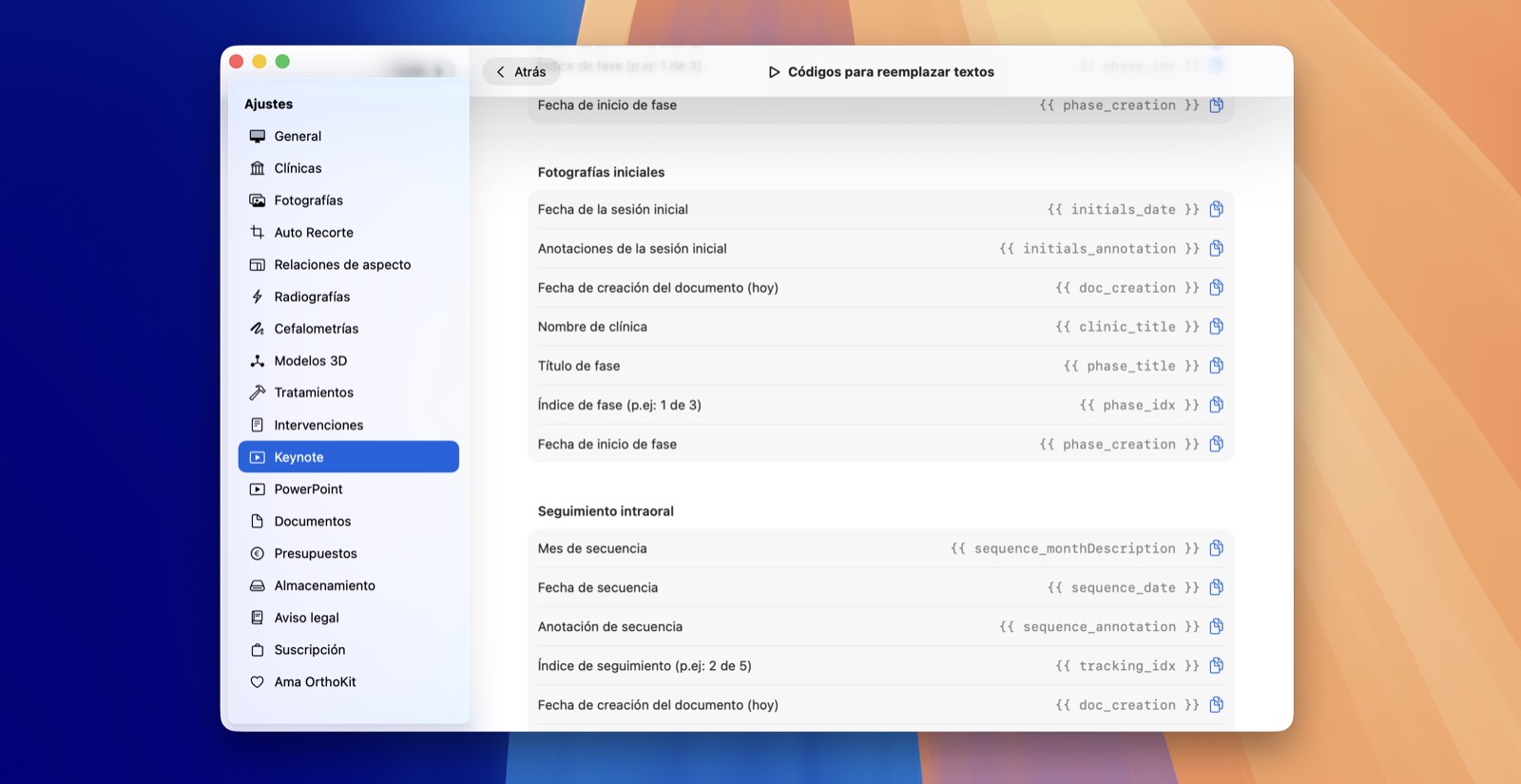
Pillar 3 · Image codes
Images are not identified by the file name, but by the Description field of each image in Keynote.
How to assign an image code
- In Edit Slide Layouts mode, select the image inside the master slide.
- Open the side inspector (Format) and go to the Image tab.
- In the Description field, write the code between double braces, for example
{{ radiograph }}.
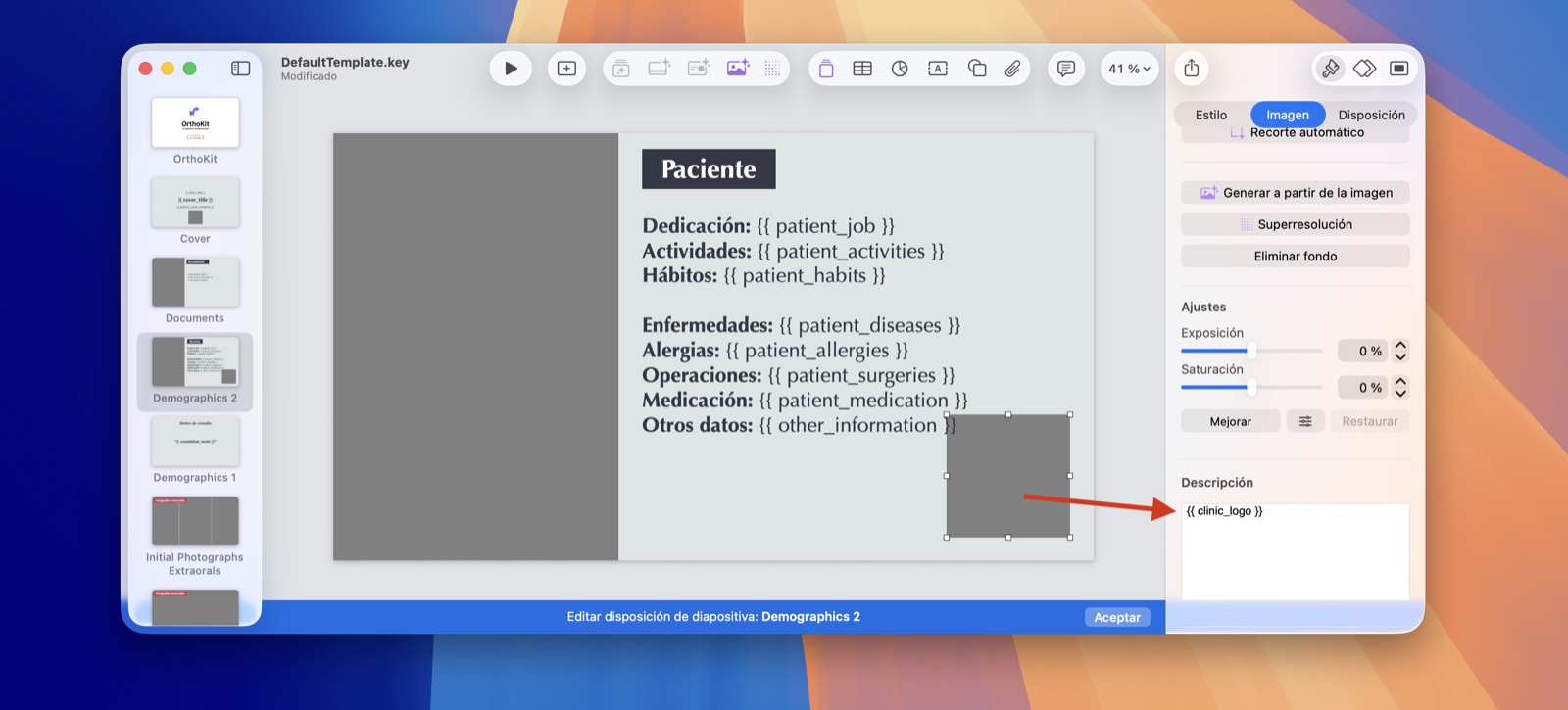
The image placed in the master slide acts only as a reference placeholder: its position, size and proportion are respected, but its content is replaced upon export. It can be a gray filler image or any other sample image; what matters is the placeholder and the description.
Available images by section
| Section | What is inserted | Code (in Description) |
|---|---|---|
| Cover · Demographics | Main side image | {{ side_image }} |
| Documents | Document preview | {{ document }} |
| Radiographs | Patient’s radiograph | {{ radiograph }} |
| Cephalometrics | Tracing drawing over the lateral radiograph | {{ radiograph }} |
| Cephalometrics | Analysis values table | {{ tracing }} |
| Superimpositions | Superimposition render | {{ superimposition }} |
| Interventions | Render of the interventions block | {{ interventions }} |
| Budgets | Budget render | {{ budget }} |
{{ clinic_logo }}works on any master slide. At the end of the export process, OrthoKit reviews all generated slides and stamps the clinic’s logo on any image whose description is{{ clinic_logo }}.
Clinical photographs (initial, follow up and comparatives)
In these three sections there is no fixed code per section: each placeholder is identified by the photograph type’s own code, which matches the internal identifier OrthoKit uses for each one.
Examples of extraoral codes: {{ frontalResting }}, {{ frontalSmiling }}, {{ profileResting }}, {{ profileSmiling }}, {{ threeQuartersResting }}, {{ threeQuartersSmiling }}.
Examples of intraoral codes: {{ frontal }}, {{ right }}, {{ left }}, {{ upper }}, {{ lower }}, {{ openedFrontal }}, {{ overjetFrontal }}.
Full list inside OrthoKit: in Settings › Keynote Builder › Codes to insert images › Photographs you will find the complete catalog of available codes with a button to copy each one.
Comparatives (before / after) · _A and _B suffixes
In the comparatives master slide, each placeholder exists twice: one for the left-hand series and another for the right-hand series. The corresponding suffix is added to the base code:
{{ frontalResting_A }}· extraoral frontal resting photograph of the left series (before).{{ frontalResting_B }}· extraoral frontal resting photograph of the right series (after).{{ frontal_A }}/{{ frontal_B }},{{ upper_A }}/{{ upper_B }}, and so on.
Only the suffix changes. The base code of the photograph is the same as the one used in initial photographs.
Example blocks
These can be pasted directly into a text box inside the corresponding master slide.
Cover
{{ cover_title }}
{{ patient_name_lastname }}
{{ complete_age }} · {{ patient_gender }}
{{ clinic_title }} · {{ doc_creation }}
Demographics
Motivo de consulta: {{ consulation_motiv }}
Alergias: {{ patient_allergies }}
Medicación: {{ patient_medication }}
Hábitos: {{ patient_habits }}
Follow-up header
{{ sequence_monthDescription }} — {{ sequence_date }}
Seguimiento {{ tracking_idx }}
{{ sequence_annotation }}
Budget footer
{{ budget_public_title }}
Emitido el {{ budget_date }} — {{ budget_accepted }}
Total: {{ budget_total }}
Common issues
Some slides come out blank
- Check that the master slide name contains the exact keyword of the section, respecting uppercase and lowercase.
- Check that the section is enabled in the patient study’s export panel.
- If the section needs data (photographs, budgets, radiographs, etc.) and none is registered for the patient, the section does not generate slides.
The text appears literally ({{ patient_name_lastname }}) instead of the real data
- The code does not exist or is misspelled. Refer to the list in Pillar 2.
- Codes are sensitive to the exact character: a changed accent, a forgotten underscore or a letter in uppercase prevents the replacement.
The image is not replaced
- The code must be written in the image’s Description field (Keynote inspector › Image tab), not in the file name nor in a text box placed over the image.
- Check that the description includes both braces:
{{ radiograph }}, notradiograph.
All the document, intervention or budget slides show the same image
This behavior occurred in earlier versions of OrthoKit and has already been fixed. Update to the latest version.
I duplicated a master slide and it appears twice in each study
This is the expected behavior. If two master slides contain the same keyword, both are included in every export of that section. To avoid it, rename one of them so its name does not contain the keyword.
How to revert to the default template
In Settings › Keynote Builder › Active template, select the first entry in the list (the one not marked as customized). Customized templates are preserved and can be reactivated at any time.
What happens when you delete a {{ ... }} code from a master slide
Nothing happens: OrthoKit simply has nowhere to write that data and skips it. The rest of the slide continues to work normally.
Summary
- In OrthoKit, Settings › Keynote Builder › Create new template. The template opens automatically in Keynote.
- In Keynote, View › Edit Slide Layouts.
- Assign to each master slide a name that contains the keyword of its section (Pillar 1).
- Write the text codes
{{ ... }}in the corresponding text boxes (Pillar 2). - Assign the image codes in the Description field of each image (Pillar 3).
- Save with ⌘S. Any subsequent export will use this template.